General Settings
General customizations for Home, Tab, Browser, Widget.
Action
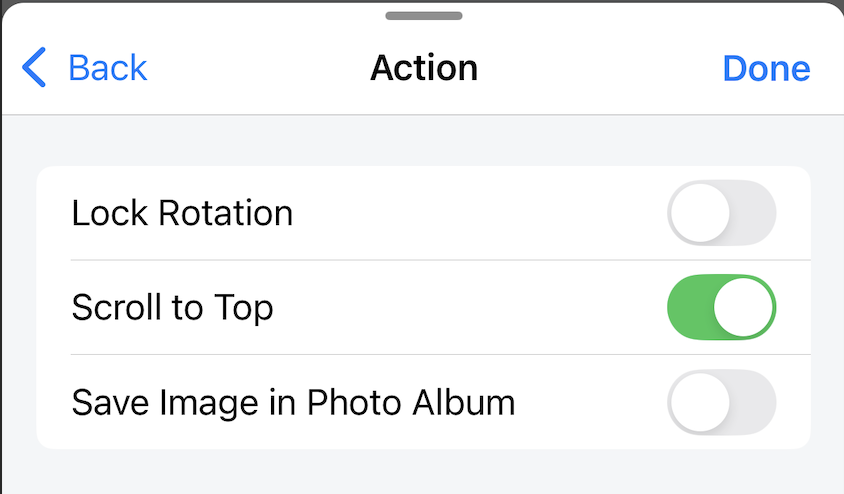
Lock Rotation
When enabled, the app is always in portrait mode.
When disabled, the app will change portrait/landscape mode when rotating the phone. But if the phone's system setting is Lock rotation, the app is always in portrait mode.
Default: disable
Scroll to Top (iOS only)
When enabled, tap the status bar area on the right corner, the website will automatically scroll to the top of the page.
Default: enable
Save Image in Photo Album/Gallery
When disabled, "Save image" will save the image to the /Downloads folder. When enabled, "Save image" will save the image to the Photo Album/Gallery.
Default: disable
Tab
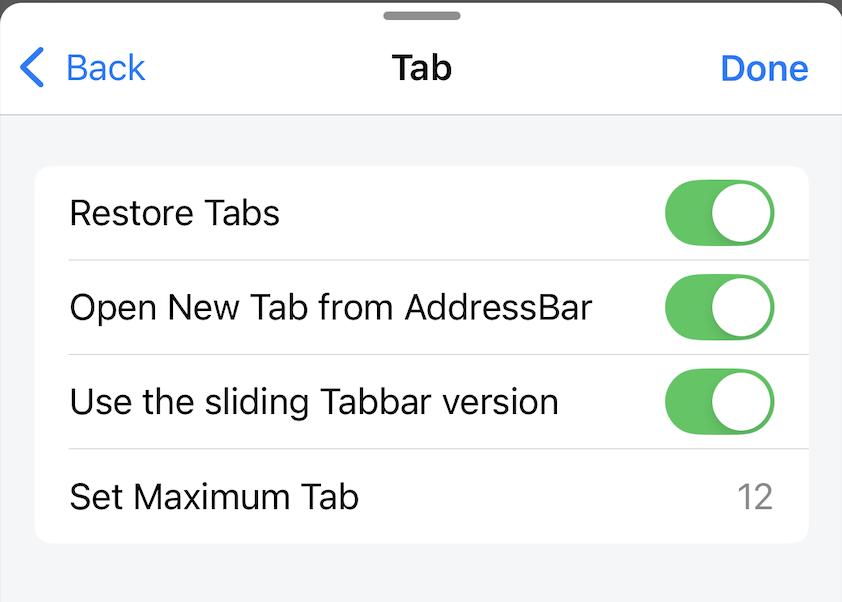
Restore Tabs
When enabled, restarting the application will reopen previously opened tabs.
When disabled, restarting the application will not reopen previously opened tabs.
Default: enable
Open New Tab from AddressBar
When enabled, tap the Address bar of the current tab then type the search term or link, then press enter, the result/website will be opened in a new tab.
When disabled, tap the Address bar of the current tab then type the search term or link, then press enter, the result/website will be loaded in the current tab.
Default: enable
Use the sliding Tabbar version
When enabled, the sliding tabbar is used, performing a swipe on the tabbar to select the displayed tab.
When disabled, the normal tabbar is used, the tabbar will be in list form, performing a horizontal scroll to select the tab.
Default: enable
Set Maximum Tab
Set the maximum number of tabs that can be opened at the same time. The minimum value that can be set is 6, the maximum value that can be set is 30. If the user sets a value greater than 12, a warning will be displayed. We do not recommend setting the value too large, it will affect the application performance and browsing experience.
Default: 12
Shortcuts
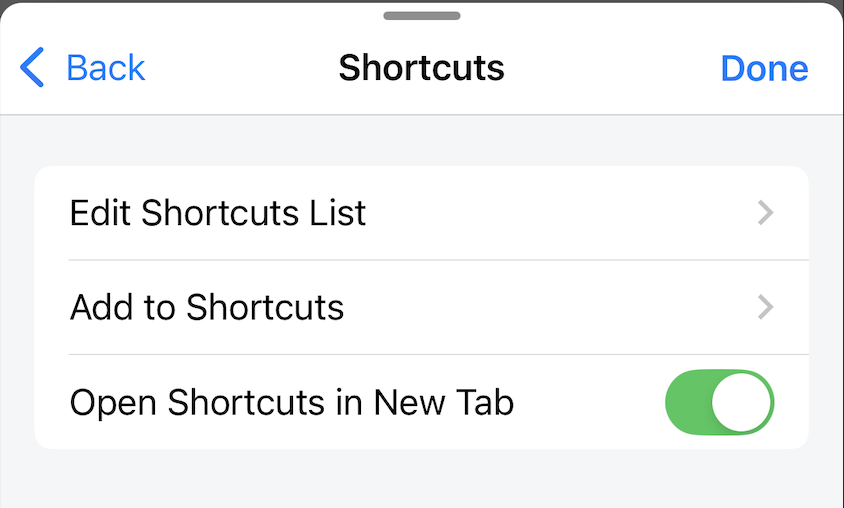
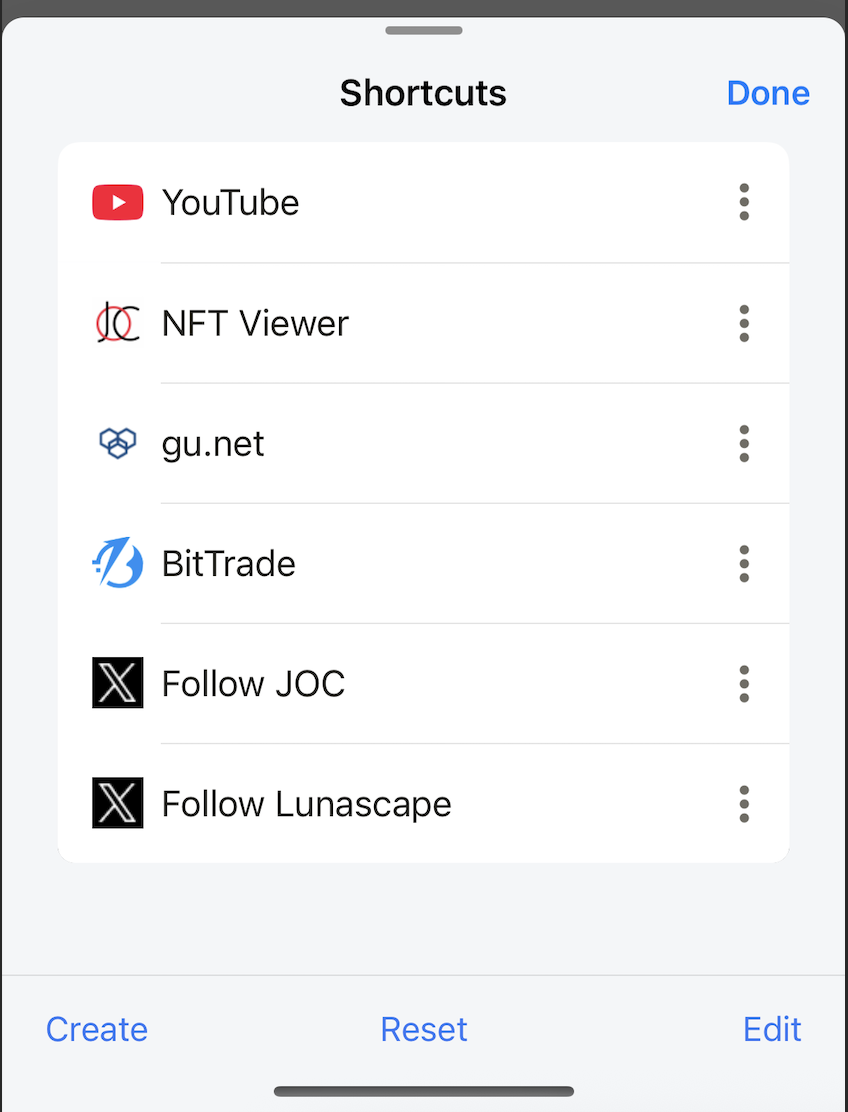
Edit Shortcuts List
Open Shortcuts modal, users can perform the following operations:
- Create new shortcut
- Reset the shortcut list to default
- Change the location of shortcuts
- Delete shortcut
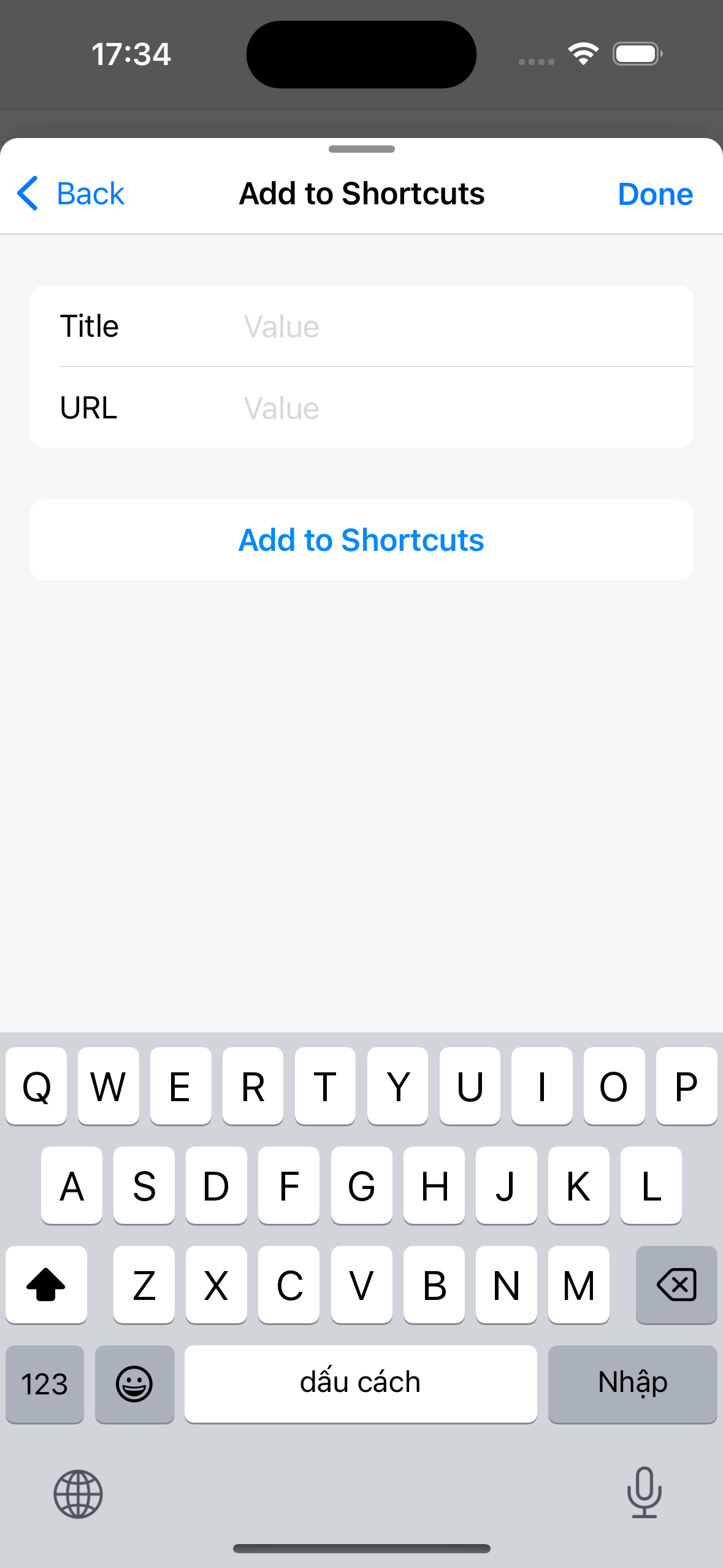
Add to Shortcuts
Open the Add to Shortcuts screen, users can create new shortcuts here.
Open Shortcuts in New Tab
When enabled, tap the shortcut, the website will be loaded in a new tab. When disabled, tap the shortcut, the website will be loaded in the current tab.
Default: enable
Ad Blocker
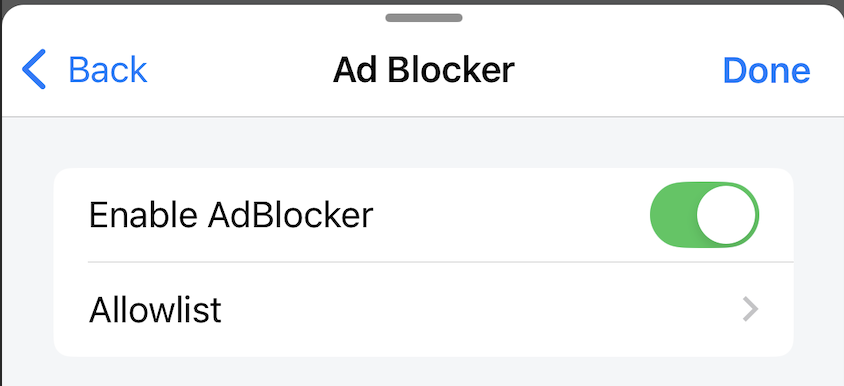
Enable AdBlocker
When enabled, ad blocking will work, but will not work on websites on the Allowlist.
When disabled, ad blocking will not work.
Default: disable
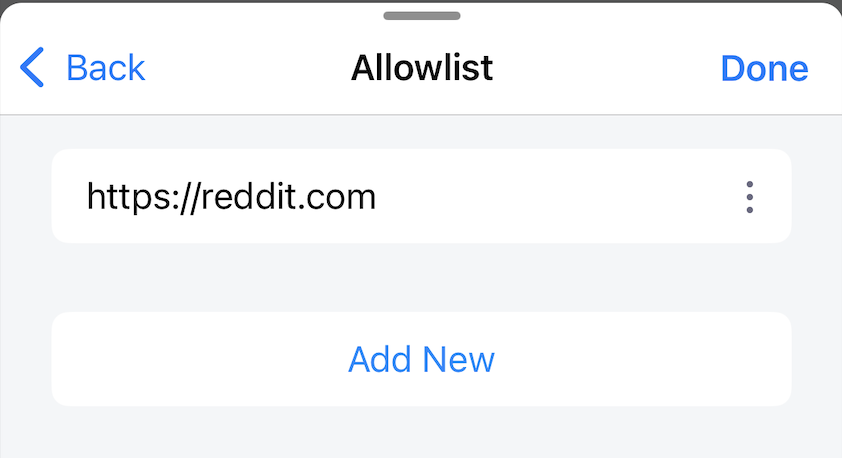
Allowlist
Set a list of websites that the ad feature will not work on.
Users can manually add/remove from the list.
News
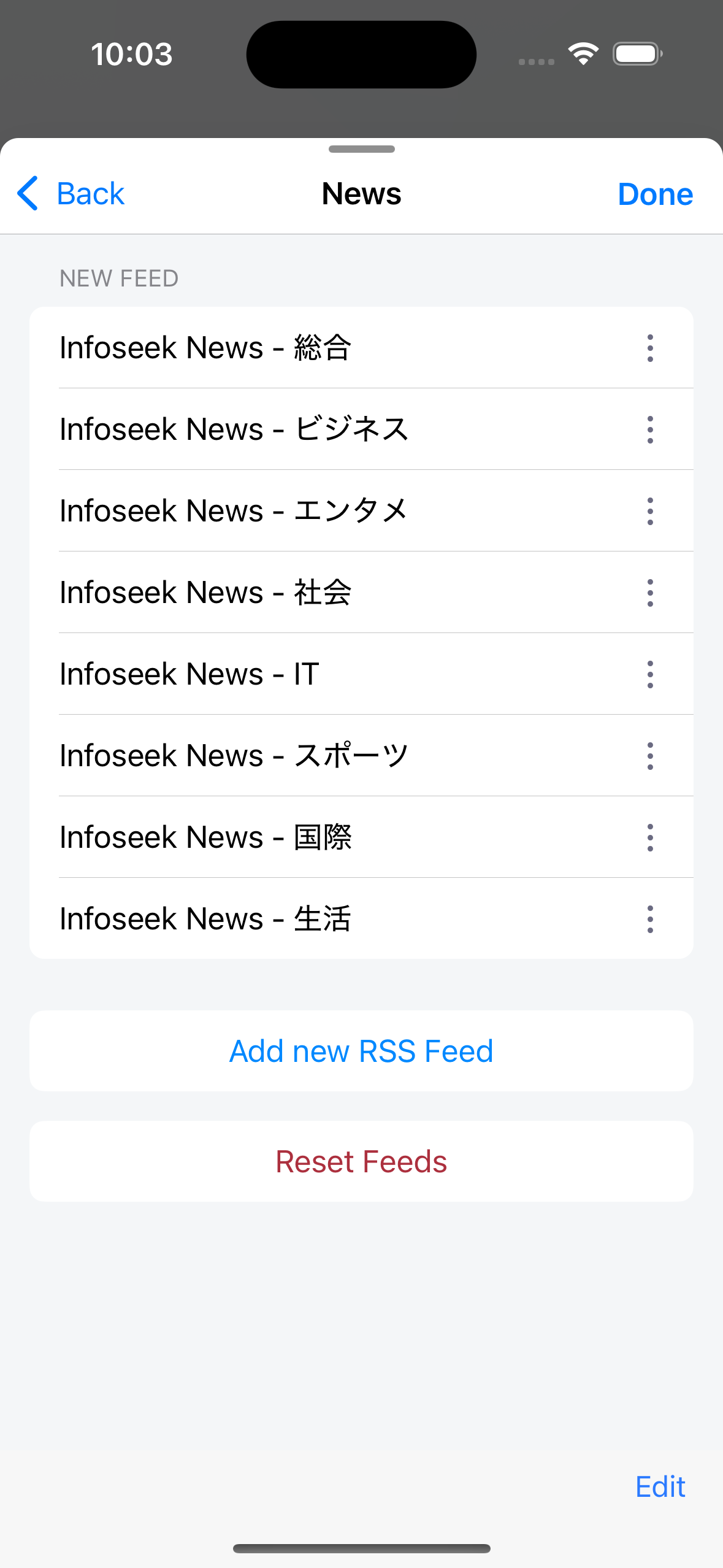
Set up the news list. Users can add/edit/delete RSS feeds. Each RSS feed corresponds to a news page on the News screen. Users can change the location of the news pages as they wish. Each language will have a different default RSS feed list. Reset Feeds will reset the RSS feed list to the default according to the current language.
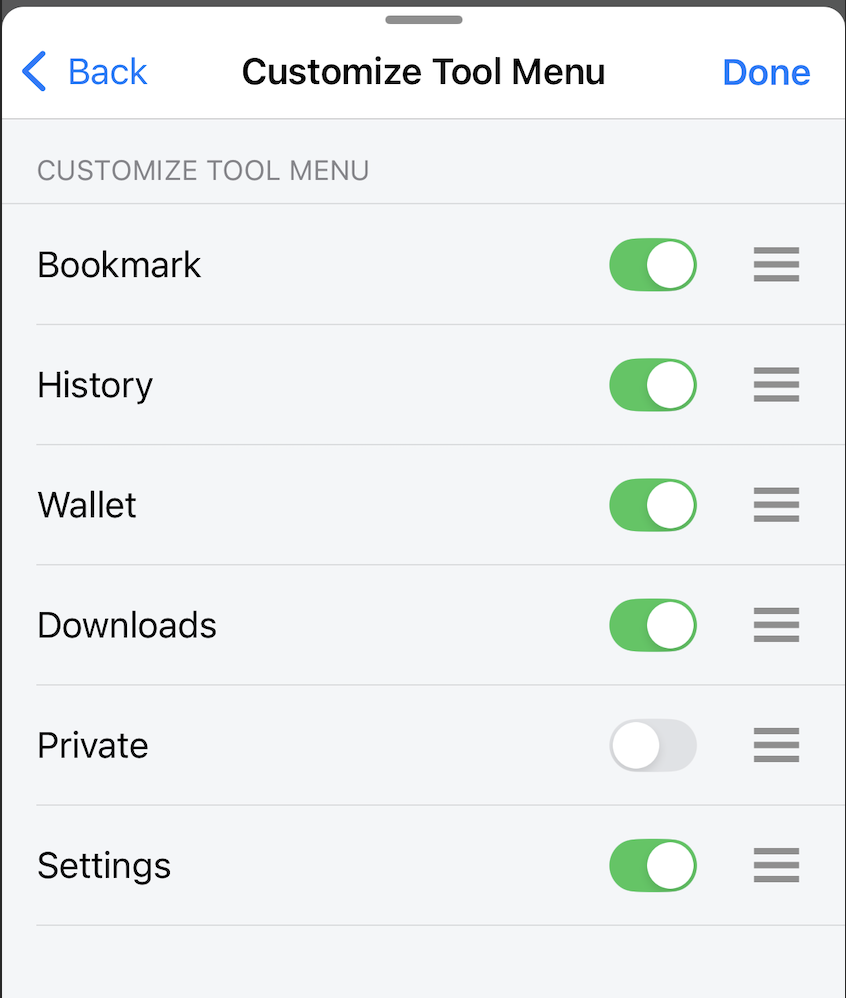
Customize Tool Menu
Set the position, hide/show of the Tool menu list displayed on the Home screen
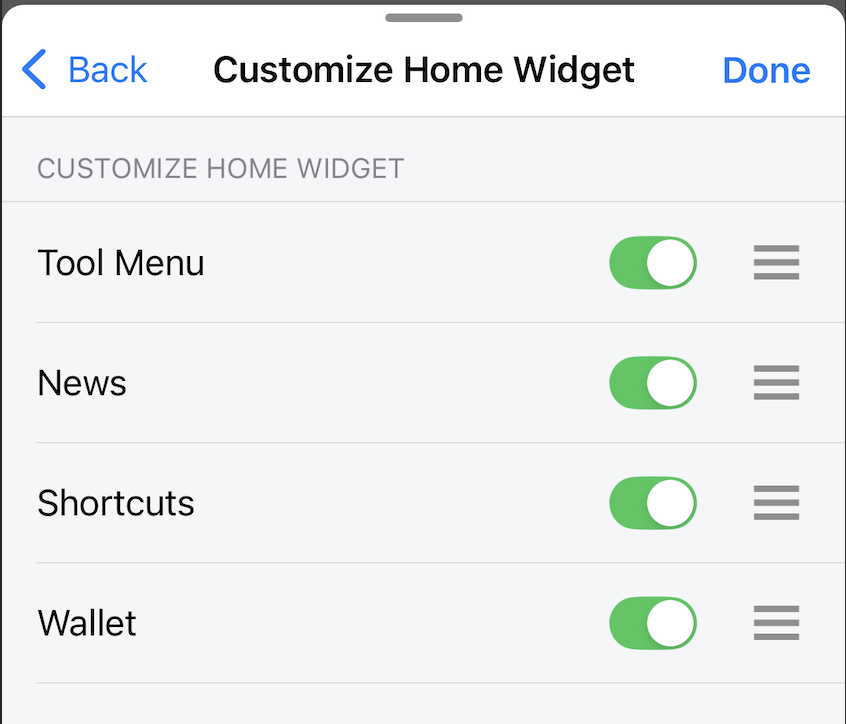
Customize Home Widget
Set the position, hide/show of the Widgets displayed on the Home screen